
How to Embed a Live Excel Spreadsheet in Your ICIMS Dashboard

Published
One of the more underrated ways to surface reporting data in ICIMS is to embed a live Excel spreadsheet directly in a dashboard panel. If you have a spreadsheet living in SharePoint, you can pull it right into your ICIMS interface so recruiters and admins see it without ever leaving the ATS. Here’s exactly how to do it.
Step 1: Get the SharePoint Embed Link
Open your Excel file in SharePoint and grab the share link. You’ll need this URL for the embed code in a moment.
Step 2: Set Up a Dashboard Panel in ICIMS
Navigate to Manage Dashboards in ICIMS and create a new panel. Set the panel type to Text. Inside the panel, create a new item, then click Insert > Add Media.
Step 3: Don’t Just Paste the Link (It Won’t Work)
This is where most people get stuck. If you paste the SharePoint URL directly into the modal’s General tab, it won’t render. ICIMS needs the link wrapped in an iframe embed tag, not a bare URL.
Take your SharePoint link and insert it into this format:
<iframe
  src="YOUR_SHAREPOINT_LINK_HERE"
  width="1200"
  height="800"
  frameborder="0"
  scrolling="no">
</iframe>
Set the dimensions to 1200 x 800 and make sure “Constrain Proportions” is checked so the aspect ratio stays locked if you ever resize.
A complete embed tag looks something like this:
<iframe src="https://netorgft8017216-my.sharepoint.com/personal/your_user/_layouts/15/Doc.aspx?sourcedoc={your-doc-id}&action=embedview&wdAllowInteractivity=False&wdHideGridlines=True&wdHideHeaders=True&wdDownloadButton=True&wdInConfigurator=True" width="1200" height="800" frameborder="0" scrolling="no"></iframe>Paste that full iframe block into the media modal, save, and your live spreadsheet will render directly in the dashboard panel.
Why This Works
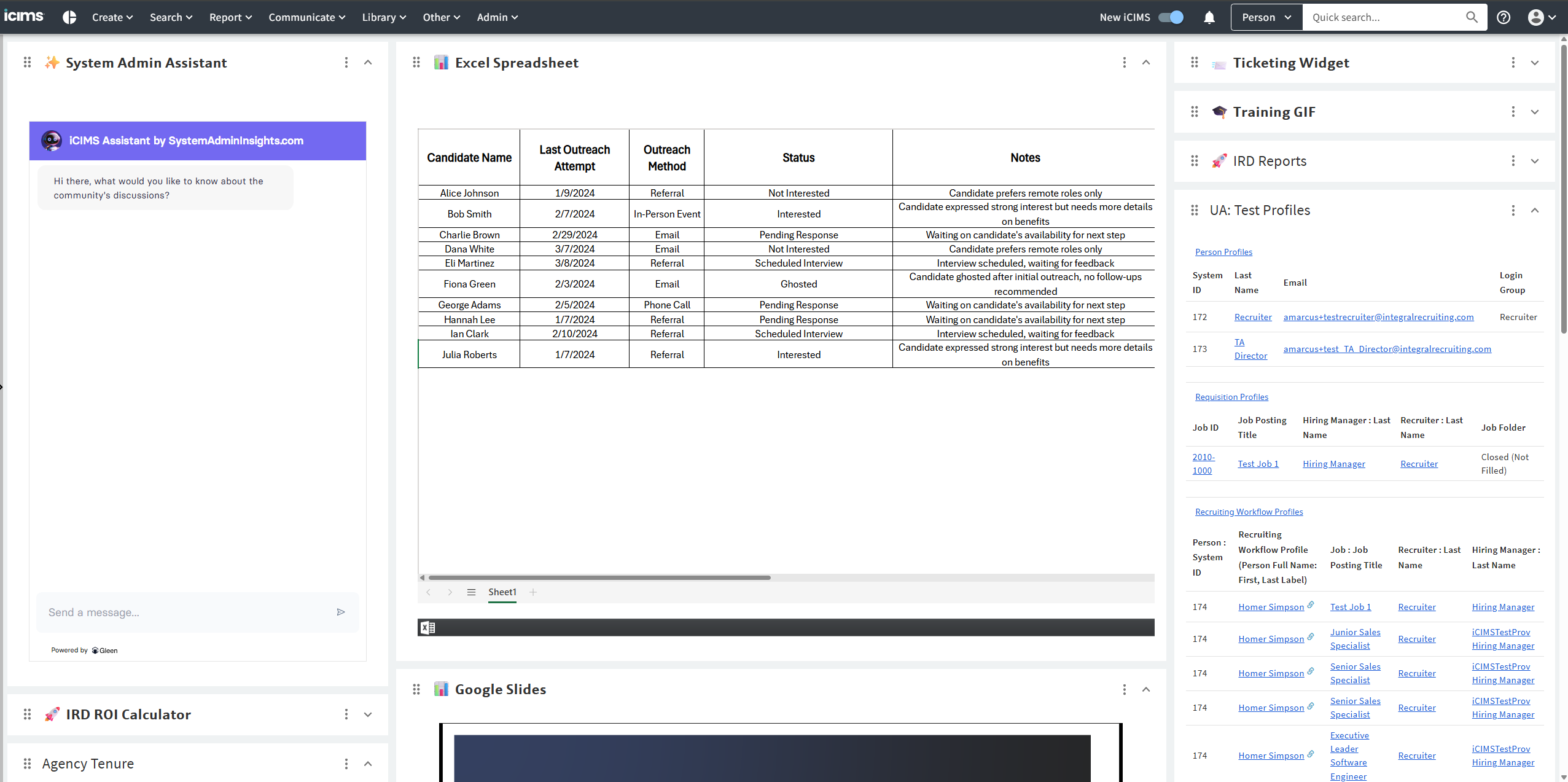
ICIMS’s Text panel type accepts raw HTML, which means anything you can embed in a webpage, you can embed there. SharePoint’s embed view URL (note the action=embedview parameter) is designed for exactly this use case. The additional parameters like wdHideGridlines and wdHideHeaders clean up the visual presentation so it looks polished rather than like a raw spreadsheet dump.
The result: a live, auto-refreshing view of your Excel data surfaced right where your team is already working.
Before You Publish: A Quick Security Check
The technique itself is low-risk and standard. ICIMS’s Text panel with an iframe embed is a documented pattern, and the wdAllowInteractivity=False parameter in the SharePoint URL actually reduces exposure by disabling macros and interactivity in the embedded view. But there are a few things worth verifying before you go live.
The security boundary here is SharePoint, not ICIMS. The embed URL contains your SharePoint document ID, which means anyone who can view the dashboard panel can access the spreadsheet. ICIMS isn’t doing any additional gatekeeping on that. With that in mind:
- Check your SharePoint share settings. “People in your organization with the link” is the right setting. “Anyone with the link” is effectively public within your ICIMS instance, which is probably not what you want.
- Confirm the dashboard panel is scoped to the right audience. Hiring managers and admins, yes. Candidates or external users, no.
- Treat the URL as semi-sensitive. It contains a document ID. Don’t share it outside of ICIMS.
No inherent security issue with the technique itself. Lock down your SharePoint permissions correctly and you’re fine.